Authentication & Security
MCP HTTP Auth
When auth_token is set for a team in oduflow.toml, the MCP endpoint (/mcp) requires a Bearer token:
Each team can have its own auth token:
[team.1]
hostname = "team-a.example.com"
auth_token = "secret-token-team-1"

[team.2]
hostname = "team-b.example.com"
auth_token = "secret-token-team-2"
The token is used to both authenticate and identify the team. The self-hosted OAuth provider also accepts it directly as a non-expiring Bearer credential.
Fresh configs get a generated auth_token for [team.1] on first startup. The
value is printed in the startup log and stored in oduflow.toml; use it as
Authorization: Bearer <auth_token> when connecting HTTP MCP clients.
Self-hosted OAuth (for Claude.ai and other MCP clients)
Oduflow can act as its own OAuth 2.1 Authorization Server, so MCP clients that require an OAuth flow (e.g. Claude.ai Remote MCP, MCP Inspector) can connect without any external identity provider.
The team's OAuth client_id is a non-secret identifier, team_<id> (e.g. team_1 for [team.1]); the client_secret is the team's auth_token. Only the client_id appears in the authorization URL — the secret is sent solely in the token request body, so it never leaks into logs or browser history. When the OAuth flow completes, Oduflow issues an independent, opaque access token that expires (with a refresh token to obtain a new one) — the client never receives the auth_token itself, so a compromised OAuth token has a bounded lifetime and can be revoked. The auth_token stays valid as a plain Bearer token for CLI clients (see Bearer-only mode).
Setup
The Authorization Server is enabled automatically whenever a team has an
auth_token. It runs on each team's own hostname in both port and
traefik mode: the OAuth issuer is derived per request from the
incoming host after validating it against configured team hostnames. No
separate OAuth configuration is needed:
[routing]
mode = "traefik"
acme_email = "admin@example.com"

[team.1]
hostname = "team-a.example.com"
auth_token = "secret-token-team-1"
In port mode behind Cloudflare Tunnel or another TLS proxy, publish the same hostname configured for the team and forward it to the HTTP listener:
For direct LAN access while retaining that public hostname, use split DNS so
oduflow.example.com resolves to the server's LAN address internally. Local
Bearer clients may also connect by IP; OAuth discovery is intentionally served
only for a recognized team hostname.
Either way, Oduflow exposes:
GET /.well-known/oauth-authorization-server— discovery metadataGET /authorize— authorization endpoint (Authorization Code + PKCE)POST /token— token endpoint (mints/rotates the access + refresh token pair)POST /revoke— revoke a minted access or refresh token
Dynamic Client Registration (/register) is disabled — clients must use the preregistered credentials.
Connecting from Claude.ai
- Go to Claude.ai Settings → Connectors → Add custom MCP
- Enter your Oduflow URL:
https://your-server.com/mcp(in traefik mode, the team's own hostname, e.g.https://team-a.example.com/mcp) - In the OAuth fields, use the team's id as
Client IDand itsauth_tokenasClient Secret(theClient IDisteam_<N>for[team.N]— e.g.team_1for[team.1]):
- Claude.ai performs the OAuth flow against your Oduflow instance, receives an access token, and connects.
The issued access token is an independent, expiring token bound to that team (not the auth_token), so each team's claude.ai connector ends up scoped to its own workspaces, templates, and credentials while Claude never stores the master secret. Claude.ai transparently uses its refresh token to obtain a new access token when the old one expires; the connection also survives an Oduflow restart because minted tokens are persisted.
Bearer-only mode (CLI / automation)
For curl, IDE clients, or anything that doesn't need OAuth, simply send the auth_token as a Bearer header:
This uses the same team identity as the OAuth flow.
The built-in remote CLI uses the same Bearer authentication and live MCP tool schemas:
export ODUFLOW_MCP_URL="https://your-server.com/mcp"
export ODUFLOW_MCP_TOKEN="secret-token-team-1"

oduflow client list_environments
oduflow client does not use the dashboard's ui_password. For an automation
that needs only one development environment, prefer its scoped /mcp/<env> URL
and per-environment Secret Key instead of the team token. The server then hides
team-wide tools and injects the environment target itself.
Scoped single-environment access (/mcp/<env>)
The team auth_token unlocks the full tool surface — create, delete, and stop
environments, manage templates, services, and volumes. To hand an AI agent a
confined handle to one environment only, Oduflow exposes a scoped endpoint:
On this endpoint only the in-environment tools are available — sync
(pull_and_apply), install/upgrade modules, run tests, open the Odoo shell, run
SQL, read and write records through the odoo_* ORM tools, read/write/search
files, fetch logs and info, and restart. The ORM tools grant no new privilege:
anything they can reach is already reachable through run_odoo_shell and
run_db_query, which the endpoint has always exposed. Lifecycle and
system tools (create/delete/stop/start/recreate, templates, services, volumes,
listing other environments) are not exposed and cannot be called. The
environment is taken from the URL, so the agent never passes — and cannot
override — which environment it operates on.
Per-environment Secret Key
Every environment created after this feature gets its own access token, generated
at creation time and stored on the container. Use it as a Bearer token or as
an OAuth client credential — exactly like a team auth_token, but it only
unlocks its own /mcp/<env> endpoint:
A per-environment token is rejected on the full /mcp endpoint and on any other
environment's URL, so the credential itself is the boundary.
Getting the URL and Secret Key
In the web dashboard, open an environment's More → MCP Access. The dialog
shows the /mcp/<env> URL and the Secret Key (with copy buttons) ready to paste
into an agent's MCP configuration or the built-in remote CLI:
export ODUFLOW_MCP_URL="https://your-server.com/mcp/<env>"
export ODUFLOW_MCP_TOKEN="<environment-secret-key>"
oduflow client get_environment_info
Environments created before this feature carry no Secret Key (Docker labels can't be added to a live container); recreate the environment to issue one. Recreating an environment also rotates its token.
Shared single-environment dashboard (/env/<name>)
The dashboard equivalent of /mcp/<env>: a link that opens the dashboard
reduced to one environment, for a client or collaborator who has no team
password.
Open More → Share UI on an environment card and Oduflow mints
Opening it trades the key for a signed, HTTP-only, SameSite=Strict cookie and
redirects to the clean /env/<env>, so the key does not linger in the address
bar or browser history. The same modal regenerates or revokes the link; both
take effect immediately, including for sessions already opened with it, because
the cookie carries a fingerprint of the secret it was minted from. Links have no
expiry of their own; a session cookie lasts seven days and re-opening the link
renews it.
A shared session sees that environment's card, logs, storage and status; can
start, stop, restart and sync it, install and upgrade modules, open its Odoo
shell and psql consoles, use Connect As and its Agent Chat, and read its
/mcp/<env> URL and Secret Key. Everything else is refused server-side by a
default-deny allowlist re-checked on every request: the full dashboard, any
other environment, all team-wide surfaces (templates, services, volumes, extra
addons, credentials, productions, host statistics, license), the provisioning
actions on the environment itself (create, delete, update, recreate, switch
branch, protect, save as template), the share routes themselves, and Agent
CLI.
Agent CLI is deliberately excluded: it is a terminal in the per-team agent
container, whose workspace holds a checkout of every environment of the team.
Agent Chat runs in that same container — driven over ACP at this environment's
checkout, with this environment's scoped MCP token — so the boundary a share
link enforces is the dashboard surface, not the confinement that the
per-environment Bearer token gives on /mcp/<env>. Share with people you would
let work in the environment, and revoke when they are done.
Share secrets live in the team's data directory (shares.json, mode 0600), not
in a container label, so environments that already exist can be shared, and a
link survives recreating the environment. Deleting an environment drops its
share; renaming one carries it over.
Web Dashboard Auth
The browser login form creates a signed, seven-day HTTP-only session cookie. The REST API also accepts HTTP Basic authentication. Both use a separate password:
- Username:
admin - Password: value of
ui_passwordfromoduflow.toml
This is independent from the MCP Bearer token (auth_token). Credentials are
compared using hmac.compare_digest to prevent timing attacks. State-changing
cookie-auth requests and WebSocket handshakes are additionally checked for a
same-origin Origin/Referer to prevent CSRF.
Fresh configs get a generated ui_password for [team.1] on first startup.
Older HTTP configs with an empty ui_password are also auto-filled on startup
and written back to oduflow.toml, so an upgrade does not expose the dashboard.
When auth is disabled
MCP auth and Web UI auth are configured independently per team:
- If
auth_tokenis empty, the MCP endpoint has no team Bearer token - If
ui_passwordis empty, the web dashboard has no login password
In HTTP mode, Oduflow refuses to start with an unauthenticated MCP endpoint or dashboard unless the operator explicitly sets:
Use that only behind your own authenticating proxy. In normal fresh HTTP
deployments, auth_token and ui_password are generated automatically and
startup logs show auth as enabled:
Git Credentials
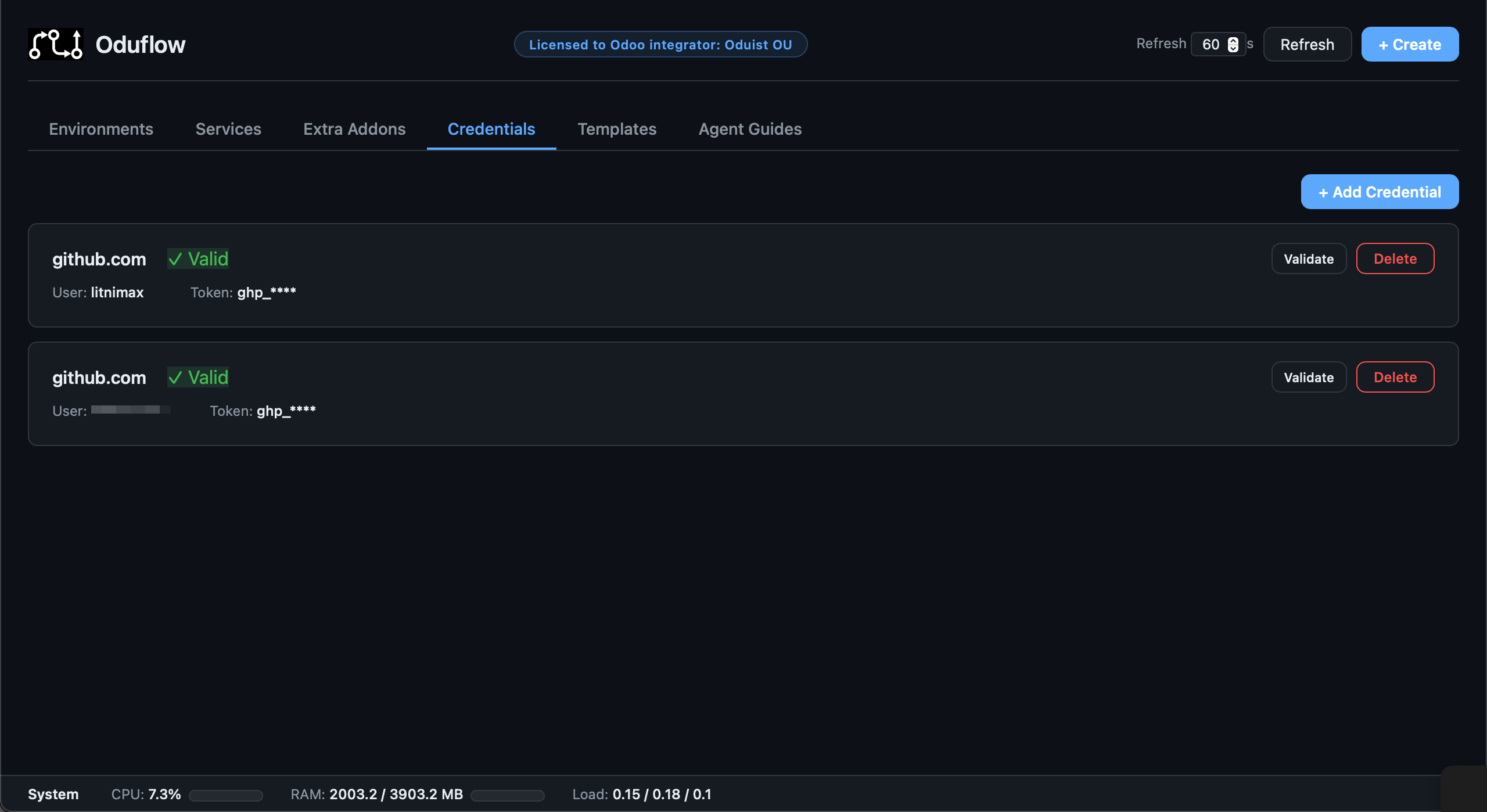
Private repository credentials are stored in the git credential store at {team_data_dir}/.git-credentials (per-team) via the setup_repo_auth tool. The clean URL (without credentials) is always used in Docker labels and logs — credentials are never exposed.
Managing credentials via MCP
# Store credentials for a private repository
oduflow call setup_repo_auth https://user:PAT@github.com/owner/private-repo.git
The tool parses the URL, stores the credentials, and verifies access by running git ls-remote.
Managing credentials via REST API and Web Dashboard
The Web Dashboard and REST API provide full credential lifecycle management:
| Action | REST API |
|---|---|
| List all stored credentials | GET /api/credentials |
| Add credentials for a repository | POST /api/credentials/add (body: repo_url) |
| Delete a stored credential | POST /api/credentials/delete (body: host, username) |
| Validate a credential against the provider | POST /api/credentials/validate (body: host, username) |
Validation checks the credential against the provider's API (GitHub, GitLab, Bitbucket). For other hosts, it reports "valid" if the credential exists. Tokens are always masked in API responses (e.g. ghp_****).
Secrets for Environment Variables
Environment variables on services and environments are visible to coding agents through get_service_info, list_services, get_environment_info and the dashboard — so putting a password or API key directly into env_vars leaks it into every agent conversation that inspects the resource.
Secrets are team-scoped named values that avoid this. A human operator creates them in the dashboard (Credentials tab → Secrets); values are write-only — they can be replaced or deleted, but no MCP tool or REST endpoint ever returns a stored value. Agents can list the names with list_secrets.
To use one, set the env-var value to a reference:
oduflow call create_service '{
  "name": "meili",
  "image": "getmeili/meilisearch:v1.6",
  "port": 7700,
  "env_vars": "MEILI_MASTER_KEY=secret:meili-master-key,MEILI_ENV=production"
}'
The real value is substituted only into the container's environment at creation time. Everything that stores or displays the configuration — the service preset, the environment's Docker label, template metadata, get_service_info/get_environment_info output — keeps the secret:<name> reference. Because only the reference travels, secrets migrate automatically when a service is restored from a preset, an environment is renamed, or an environment is saved as a template and new environments are created from it.
A dangling reference (secret deleted or never created) fails the create/update with a clear error before anything is touched; running containers keep their resolved value until recreated. After replacing a secret's value, recreate the services/environments that use it (update_service / update_environment): a rotated value counts as a config change, so update_service recreates the container even when the image and every other setting are unchanged.
The store lives at {team_data_dir}/secrets.json with owner-only (0600) file permissions, like the other credential stores. Note the boundary: code running inside a container can always read its own environment — secrets protect the MCP/REST/dashboard read surfaces, not the container itself.
iptables rule
On startup, an iptables ACCEPT rule is automatically added for the oduflow-net Docker bridge interface. This ensures that containers on the shared network can communicate with the host (required for Traefik host.docker.internal routing and PostgreSQL access). If iptables is not available, the rule is skipped with a warning.
Odoo security defaults
The bundled odoo.conf template includes these security settings:
list_db = False(hides database selector)without_demo = all(no demo data)max_cron_threads = 0(disables cron in dev environments)
A repository that ships its own .oduflow/odoo.conf replaces the template
entirely and is responsible for these settings itself.