Template Management
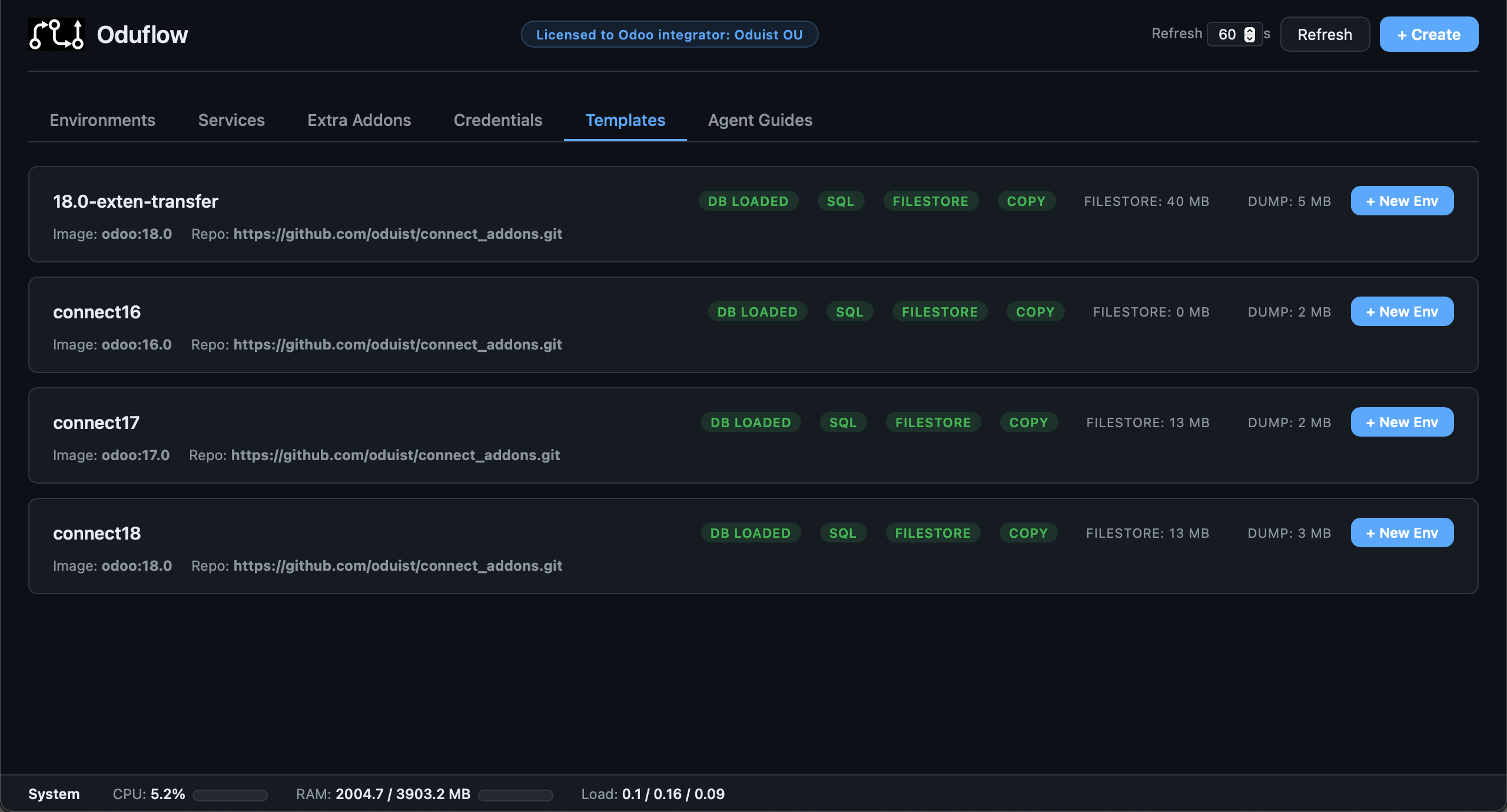
Templates are the foundation of Oduflow's instant environment creation. A template consists of a PostgreSQL dump file and an optional filestore directory.
Create templates from production dumps, staging snapshots, or from scratch. Maintain multiple named templates side-by-side (e.g. per Odoo version, per client, per project phase) and spin up any combination of branch + database in seconds.
Starting from Scratch (No Production Dump)
If you don't have a production database dump — for example, you're starting a new Odoo project or just want to try Oduflow — you can generate a clean template automatically.
Generate a clean template
oduflow init-template --odoo-image odoo:17.0 --template-name default
If a dump.sql or filestore already exists, the command will refuse to run. Use --force to overwrite:
oduflow init-template --odoo-image odoo:17.0 --template-name default --force
This will:
- Start a PostgreSQL container (if not already running)
- Run a temporary Odoo container that initializes a fresh database with the
basemodule - Dump the database to
{data_dir}/team_{ID}/templates/{name}/dump.pgdump - Extract the filestore to
{data_dir}/team_{ID}/templates/{name}/filestore/ - Load the dump into the template database automatically
Install additional modules during generation
oduflow init-template --odoo-image odoo:17.0 --template-name default --modules base,web,contacts,sale
Named templates for different projects
oduflow init-template --odoo-image odoo:17.0 --template-name myproject-v17
oduflow init-template --odoo-image odoo:15.0 --template-name legacy-v15
From a Production Dump
Place your dump file at {data_dir}/team_{ID}/templates/default/dump.sql (plain SQL) or dump.pgdump (PostgreSQL custom format) and optionally copy the filestore:
mkdir -p /srv/oduflow/team_1/templates/default/
cp /path/to/production.sql /srv/oduflow/team_1/templates/default/dump.sql
cp -r /path/to/filestore/ /srv/oduflow/team_1/templates/default/filestore/
oduflow reload-template default
Saving a Branch as Template
When you've made significant changes in a branch environment (installed modules, created configurations), you can save it as the new template:
oduflow template-from-env my-branch --template-name default
oduflow template-from-env my-branch --template-name myproject  # save to a named template
This operation:
- Dumps the branch database to a new template dump file
- Reloads the template database from the new dump
- Snapshots the branch's merged filestore
- Unmounts all overlay filesystems across active environments
- Replaces the template filestore with the snapshot
- Remounts overlays for all active environments (clearing their upper dirs)
- Restarts all active containers
Warning
Destructive operation: All other environments lose their filestore deltas and are reset to the new baseline.
Reloading a Template
Update the template from a newer production dump without touching the filestore:
oduflow reload-template default --dump-path /path/to/new.dump
oduflow reload-template myproject --dump-path /path/to/new.dump
Listing and Dropping Templates
# List all template profiles with their status
oduflow list-templates

# Delete a template profile (removes DB + files from disk)
oduflow delete-template myproject
Template Metadata
Each template profile can contain a metadata.json file that stores defaults and configuration:
{
  "odoo_image": "odoo:17.0",
  "repo_url": "https://github.com/company/addons.git",
  "extra_addons": {"enterprise": "17.0"},
  "use_overlay": true,
  "source_url": "https://my-odoo.example.com",
  "source_db": "production",
  "odoo_version": "17.0+e",
  "pg_version": "15.0"
}
When create_environment is called with a template name, repo_url, odoo_image, and extra_addons are automatically loaded from metadata if not explicitly provided. This means after importing or configuring a template, you can create environments with just branch and template_name — all other parameters are inherited.
The use_overlay flag determines whether new environments use fuse-overlayfs (for large filestores) or a simple copy (for small ones). It is set automatically based on overlay_threshold_mb (in [storage]) when the template is created.
Template Decision Matrix
| Scenario | Command |
|---|---|
| New project, no existing database | oduflow init-template --odoo-image odoo:17.0 --template-name default |
| Regenerate template from scratch | oduflow init-template --odoo-image odoo:17.0 --template-name default --force |
| Named template for a specific project | oduflow init-template --odoo-image odoo:17.0 --template-name myproject |
| Have a production dump file | Place dump at {data_dir}/team_{ID}/templates/default/dump.sql and run oduflow reload-template default |
| Need to install modules or configure the template | Create an env, configure it, then oduflow template-from-env my-branch --template-name default |
| Update the template from a newer production dump | oduflow reload-template default --dump-path /path/to/new.dump |
| Save a branch environment as template | oduflow template-from-env my-branch --template-name default |
| List all templates | oduflow list-templates |
| Delete a template | oduflow delete-template myproject |